Your first panel
A panel is a widget your plugin puts inside Whittl. The AI never sees it; it is for you. Here is the "File sizes" template, a tab that charts the lines in every file of the open project:
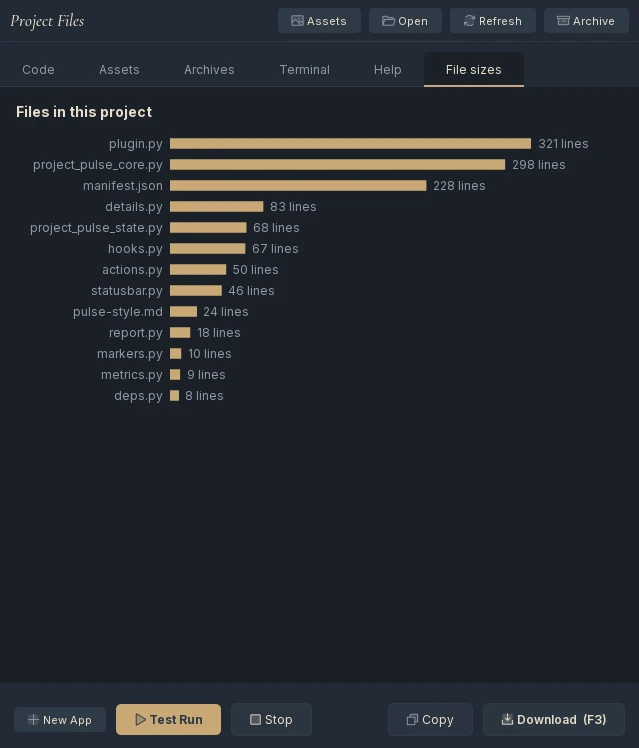
Make one
The quickest way: File > New Project (Ctrl+N), Plugin, Template, and pick Panel: a tab you draw (the one above) or Panel: a status bar readout. Describe a change in the chat if you want one, press Test Run, and Whittl builds the panel in an invisible copy of Qt to check it, then installs it switched off. Switch it on in Edit > Plugins > Manage Plugins... as for any plugin.
Or write it. A panel is a manifest entry and one function:
Whittl calls create_panel(context) once, on the interface thread, and puts what it returns where placement says. The hello world is the smallest example: a QLabel in the status bar.
Choose where it goes
| Placement | Use it for | Where it appears |
|---|---|---|
tab (the default) |
Something you look at while you work, with room: a chart, a list, a report | A tab beside Code. title is the tab's label; order places it among plugin tabs, lower first |
statusbar |
One live number or state: a count, a total, a light | The right of the status bar, at most 320 pixels wide. Keep the text short |
dialog |
Something you consult now and then: settings, a summary, a one-off tool | A window opened from Edit > Plugins |
Keep it in step
context is the panel's only way into Whittl, and everything on it is listed on the plugin API page. Three habits keep a panel honest:
- Read, then subscribe. Read what you show (
context.project(),context.usage_summary(),context.console(),context.assets(),context.model()), thencontext.subscribe(...)to the event that changes it:project,usage,console,assets,archivesortheme. A panel that only reads once goes stale the moment you switch projects. - Take colours from the theme. Use
context.colors()and subscribe totheme. A hard-coded colour looks right in one theme and broken in the other. - Remember settings through the context.
context.set_setting(key, value)andcontext.get_setting(key)keep a value for your plugin between sessions.
context.chat_prefill(text) puts a message in the chat box without sending it, which is the polite way for a panel to suggest work: the user reads it and sends it.
Avoid an invisible panel
- Give a drawn widget a size. A widget you paint yourself has no natural size. Inside a layout it can come out zero pixels tall: it is there, it paints, and nothing shows. Give it a
sizeHint(), a fixed height or a minimum height, as the File sizes chart does. Whittl's build check reports a widget that came out with no size. - Draw with QPainter, not a chart library. No charting library is guaranteed to be installed with Whittl;
QPainteralways is. - Never make the window wait. A panel runs on the same thread as the rest of the window. Long work belongs on a
QTimerin small steps, or on a thread whose result the panel picks up.
A panel and a hook together
A hook sees things a panel cannot, such as each generation starting and ending, but a hook runs on a helper thread and must never touch a widget. The pattern Whittl's own context gauge uses: the hook records what it saw in a small shared object, under a lock, and the panel polls that object with a QTimer and redraws. The Project Pulse template does the same across four hooks and three panels.
Change it and see it
Edit the plugin's project and press Test Run again. When the check passes, the installed copy is updated and the panel is rebuilt in place, so you see the change without restarting Whittl.