Project History & Archives
Before every generation, Whittl snapshots your entire project to archives/vN_<timestamp>/. If something goes wrong — the AI broke a feature, the autofix spiraled, you hate the new direction — you restore the last good version with two clicks. Nothing is permanently lost.
How it works
Every time the AI is about to modify your project, Whittl:
- Creates a fresh archive folder:
archives/v7_20260417_143022/ - Copies all tracked files into it (code, assets, data, metadata)
- Writes a
.metadatafile with: the user prompt, timestamp, backend used, file diff summary - Proceeds with generation
If generation succeeds, you have a clean snapshot of where you were. If it fails or you hate the result, the archive is there.
Accessing history
Click the Archives tab in the preview panel (alongside Code / Assets / Terminal / Help).
You see every archive newest-first, with version number, line count, file count, and timestamp:
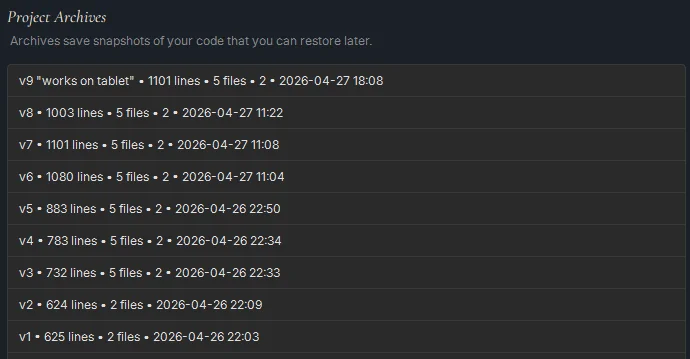
Each entry shows the prompt that led to the generation when one was given, so you can pick the right rollback point by memory rather than by archive number.
Restoring
Click Restore on any entry:
- Whittl takes a fresh snapshot of the CURRENT state first (so Restore is itself reversible)
- Copies all files from the selected archive back into the project root
- Reloads the editor
You've rolled back. Old archives aren't deleted — you can restore forward again if you change your mind.
What's archived
Everything inside the project folder except archives/ itself (no recursive archiving):
- All
.pyfiles assets/— images, sounds, fontsdata/— runtime state (SQLite DBs, saved games, user data)project.json— metadataREADME.txtui/,core/, etc. — all subfolders
What's NOT archived
archives/(obviously)__pycache__/folders (regenerated on next run).venv/if you use per-project virtual environments (recreated by pip)- External assets outside the project folder
Pruning old archives
Archives add up. A project edited for a week will have ~50 archives taking your project size times 50.
Archives are plain folders — delete archives/vN_... entries directly in your file manager to reclaim space. Safe: you just lose those specific rollback points, everything else stays intact. Keep the newer ones if you think you might want to roll back.
If your project is mostly text (a few hundred KB of Python), 50 archives is ~20 MB. Not usually worth pruning. If you're handling large media assets in assets/, prune more aggressively.
Archives vs Undo
- Undo (Ctrl+Z) — reverses edits within the current file. Character-level history. Standard editor undo.
- Archives — reverses entire generations across all files. Point-in-time rollback.
Use Undo for "I just typed something wrong." Use Archives for "the last generation went sideways."
Archives vs Templates
- Archives — automatic, per-project, time-based snapshots inside the project itself.
- Templates — manual, distributable, versioned exports for reuse in new projects. See Sharing as a Template.
"Restore Original" after a failed auto-fix
If an auto-fix cycle exhausts its rounds without getting the code green, Whittl offers a chat prompt with two buttons: Restore Original / Keep Current. "Original" here means the backup taken just before this one auto-fix cycle started — not v1 of the project.
- Restore Original — roll back to the pre-cycle state. The broken auto-fix attempt is discarded.
- Keep Current — keep the (still broken) code as-is. Useful if you want to inspect what went wrong or hand-fix it yourself.
This prompt only appears in the specific "auto-fix gave up" flow. For general rollback across any number of generations, use the Archives tab described above.
What's next
- Recovering from a Bad Generation — combining Undo + Archives
- Auto-fix Rules — where the Restore Original prompt comes from
- Folder Structure — where archives live on disk