Explain Mode & Inline AI Help
Whittl has three inline-help modalities that keep you in the editor instead of bouncing to chat. Highlight code and ask for a fix or an explanation directly, or toggle whole-file explanations on at once.
The three modes at a glance
| Mode | Scope | How to trigger | Output |
|---|---|---|---|
| Explain Mode (toggle) | Whole current file | Explain button in the editor toolbar | #: comments added inline throughout the file |
| Explain Selection | Selected text | Right-click selection → Explain Selection | Explanation in chat, code untouched |
| Fix Selection with AI | Selected text | Right-click selection → Fix Selection with AI | Rewrites only the selected block |
All three use your currently-selected backend. All three respect your current Think / Expand settings where applicable.
Explain Mode (whole file)
Click the Explain button in the editor toolbar — labeled with a lightbulb icon, just above the code area.
What happens
- Toggle ON → Whittl sends the current file to the AI asking for inline explanations
- AI returns the same code with
#:comments added above non-trivial lines and blocks - The editor swaps to the explained version (your original code is safely cached)
- Toggle OFF → Whittl strips all
#:comments, restoring the original file
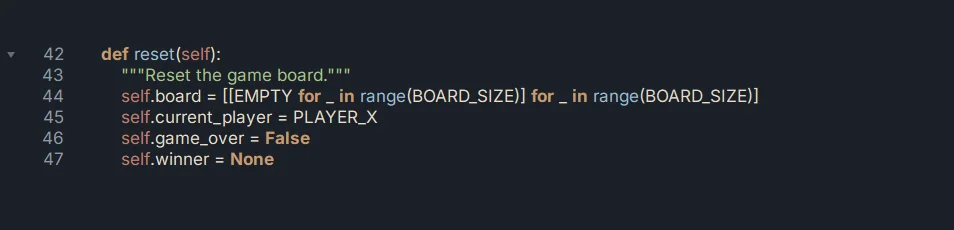
Example before and after, from a tic-tac-toe project's reset() method:
Explain Mode off — the code as you wrote it:
Explain Mode on — same code with AI commentary inserted as #: comments:
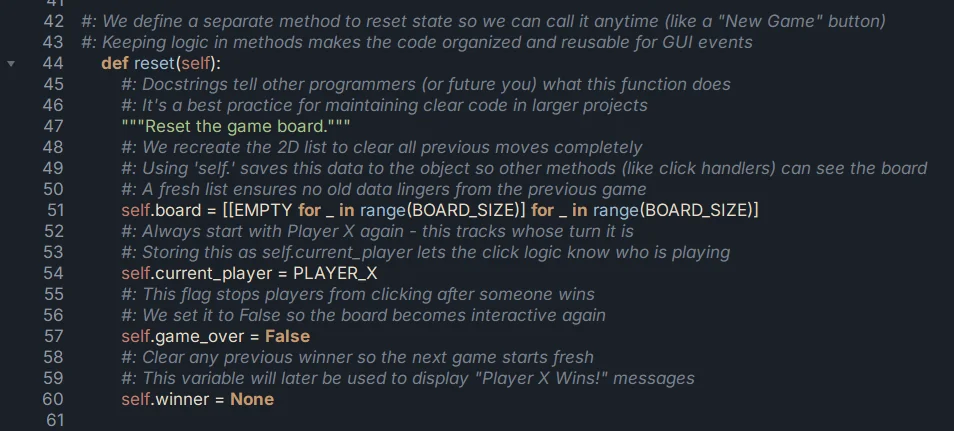
Notice the explanations sit above the code lines rather than beside them — this keeps long explanations from breaking indentation or line-wrapping awkwardly, and makes them trivial to strip back out when you toggle off.
Caching — instant re-toggle
Whittl caches the explained version per-file. Flipping Explain off and back on doesn't re-call the AI if the underlying code hasn't changed — the cached explained version loads instantly.
The cache is invalidated as soon as you edit the file (or the AI does). A fresh explanation runs next time you toggle on.
When to use it
- Reading AI-generated code you didn't write. Get oriented fast on what each block does.
- Code review on a pull-request-sized batch of changes.
- Learning from the AI's code — useful when you're picking up a framework you haven't used before (Flet, Qt, etc.) and want per-line commentary.
When NOT to use it
- While actively editing. The explained view is read-to-understand, not edit-to-ship. Toggle off before you start typing.
- On tiny files. A 20-line script doesn't benefit from explanation; you can read it directly.
Where the preference lives
The toggle state persists across sessions. Turn it off before closing Whittl if you don't want the first file you open to re-explain on launch.
Explain Selection (right-click)
When you want the AI to explain ONE thing — a regex, a comprehension, a bit of Qt layout — highlight it and right-click.
- Select the code (drag-highlight or Ctrl+Shift+Right word-by-word)
- Right-click the selection
- Click Explain Selection
The explanation appears in the chat panel, not in the code. Your file is untouched.
What you get
A short AI explanation of:
- What the code does (line-by-line if non-trivial)
- Any non-obvious behavior (side effects, edge cases, gotchas)
- Alternative ways to write it, if relevant
When to use it
- "What does this regex do?"
- "Why is this list comprehension filtering
x is not Nonetwice?" - "What does
QSizePolicy.Expandingactually do?" - Onboarding on a codebase written by someone else (or by an AI in a previous session).
Fix Selection with AI (right-click)
When a specific block is broken and you want the AI to fix just that block without touching anything else.
- Select the broken code (anywhere from a single expression to a whole function)
- Right-click the selection
- Click Fix Selection with AI
The AI rewrites only the selected range. Code outside the selection is not touched. No full-file regeneration.
What it's good at
- Syntax errors in a tight range (missing brackets, wrong quote types)
- Logic bugs within a single function or small block
- API misuse — "this was using the deprecated Qt method, fix it"
- Tightening a verbose implementation — "make this more concise"
- Converting between patterns — "turn this for-loop into a comprehension"
What it's NOT good at
- Cross-file fixes — if the bug requires changes in two files, use a normal chat generation instead
- "Why is this broken?" — that's Explain Selection, not Fix
- Fixes that need external context — e.g., "this is calling a function that doesn't exist yet in
utils/config.py" — the AI only sees the selection
Confirmation flow
Before applying, Whittl shows a preview diff in the chat panel: original selection on one side, AI's proposed replacement on the other. Click Apply to commit, Discard to cancel.
The original selection is preserved in the undo stack — Ctrl+Z rolls back a Fix Selection operation the same as any other edit.
Cost comparison
Rough per-operation cost on Claude Sonnet (adjust proportionally for cheaper backends):
| Operation | Tokens (typical) | Cost |
|---|---|---|
| Explain Mode (whole 300-line file) | ~3k input + ~2k output | $0.04 |
| Explain Selection (one function) | ~500 input + ~500 output | $0.005 |
| Fix Selection (small block) | ~800 input + ~500 output | $0.007 |
On free-tier Gemini: all three operations are free within the daily limit. On DeepSeek: divide costs by ~20. See Cost Optimization for backend-specific strategy.
What's next
- Iterating on Generated Code — the full iterate loop in chat
- Agent Mode — for fixes that need many rounds of tool use
- Cost Optimization — when to use cheap backends for explain / fix