Whittl Dark and Light Themes
Whittl ships with two themes — pick whichever fits your room.
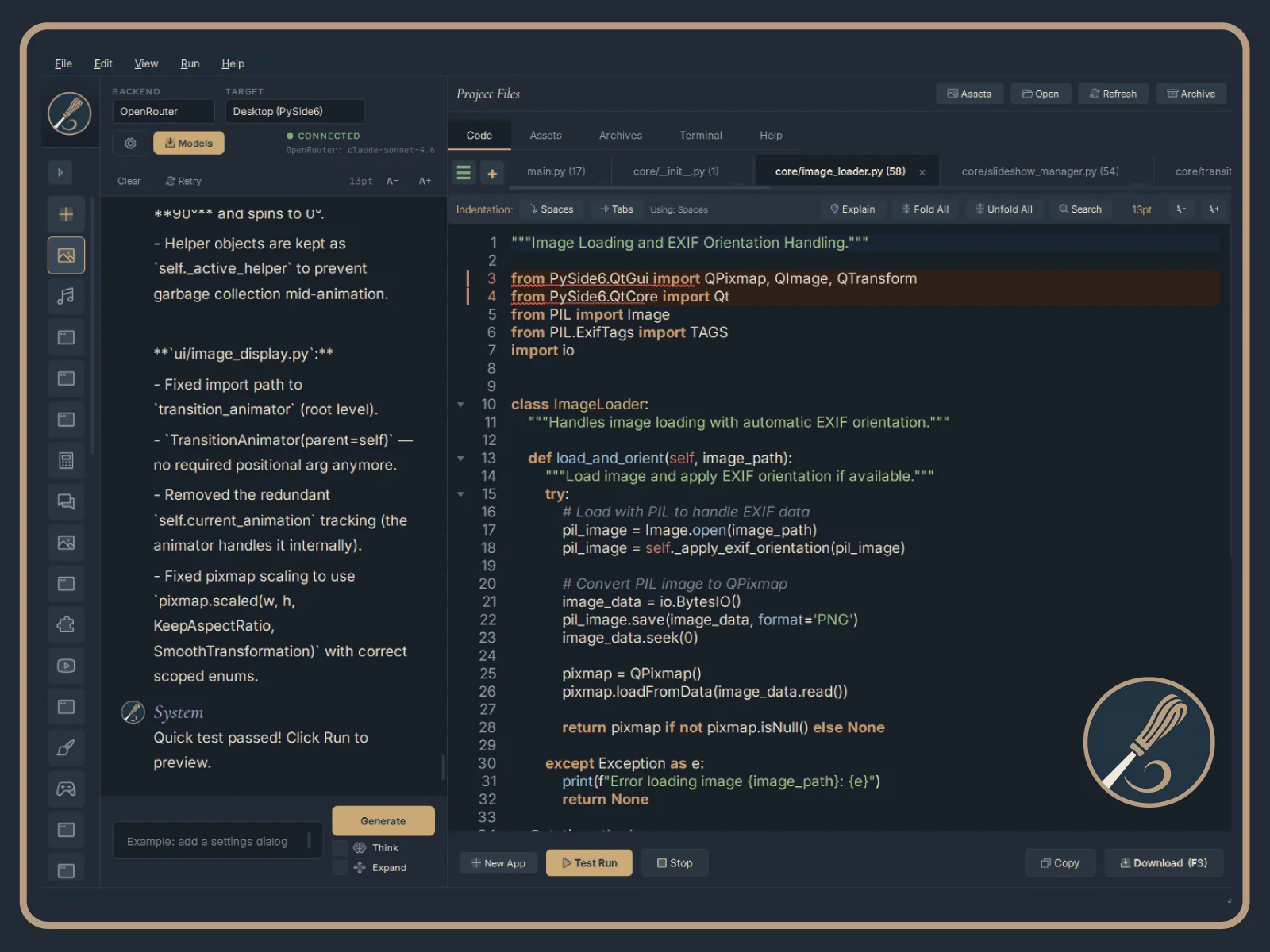
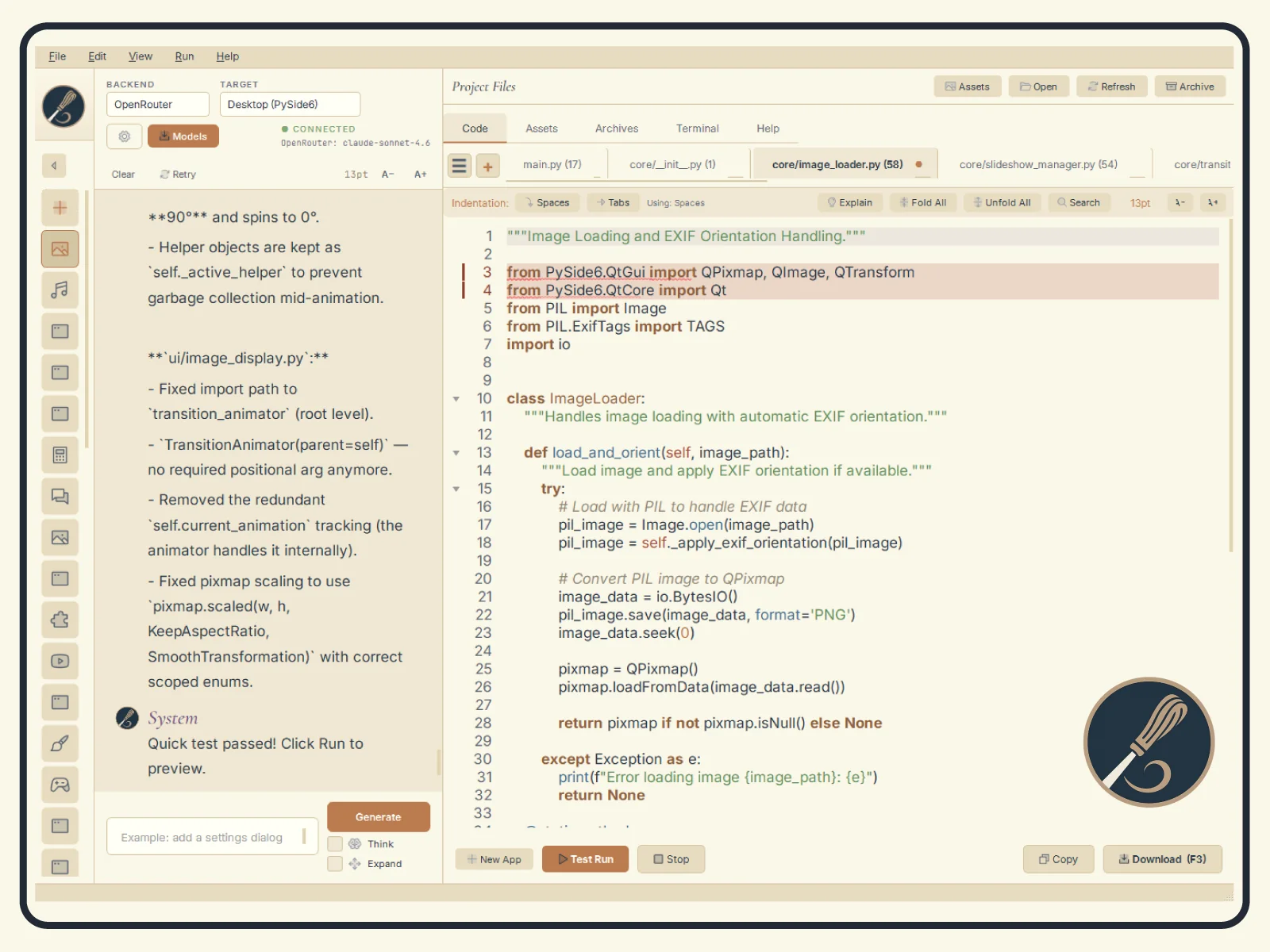
Toggling
One way: View → Switch to Dark Theme / Switch to Light Theme. The menu item names the theme you are not currently using.
Changes apply instantly. No restart, no flash of the wrong theme.
Persistence
Your choice is stored in ~/.whittl/settings.json and re-applied on the next launch.
What's next
- Settings — every control, and where the ones outside Preferences live
- Keyboard Shortcuts — full shortcut list